LM Studio
Get LM Studio for free by navigating to the official website: https://lmstudio.ai/ or the open source repositories: https://github.com/lmstudio-ai (MIT license) to run local AI models privately on your computer.
Installation
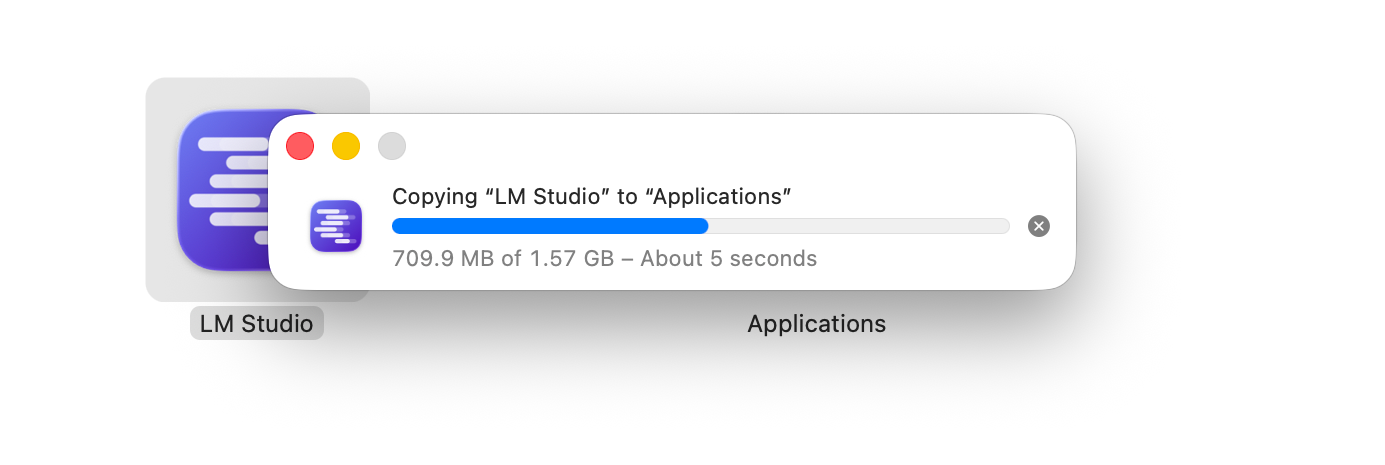
This guide focuses on use with Mac, however everything shown here is also possible with the Windows and Linux editions. You can even run LM Studio on small devices with an ARM processor, like the Raspberry Pi.
After the initial setup wizard, you should be presented with Mission Control, where you can search for models of your choice from the huge catalog at Hugging Face. Type ‘Apertus’ to see a list of 15 versions (at time of writing).
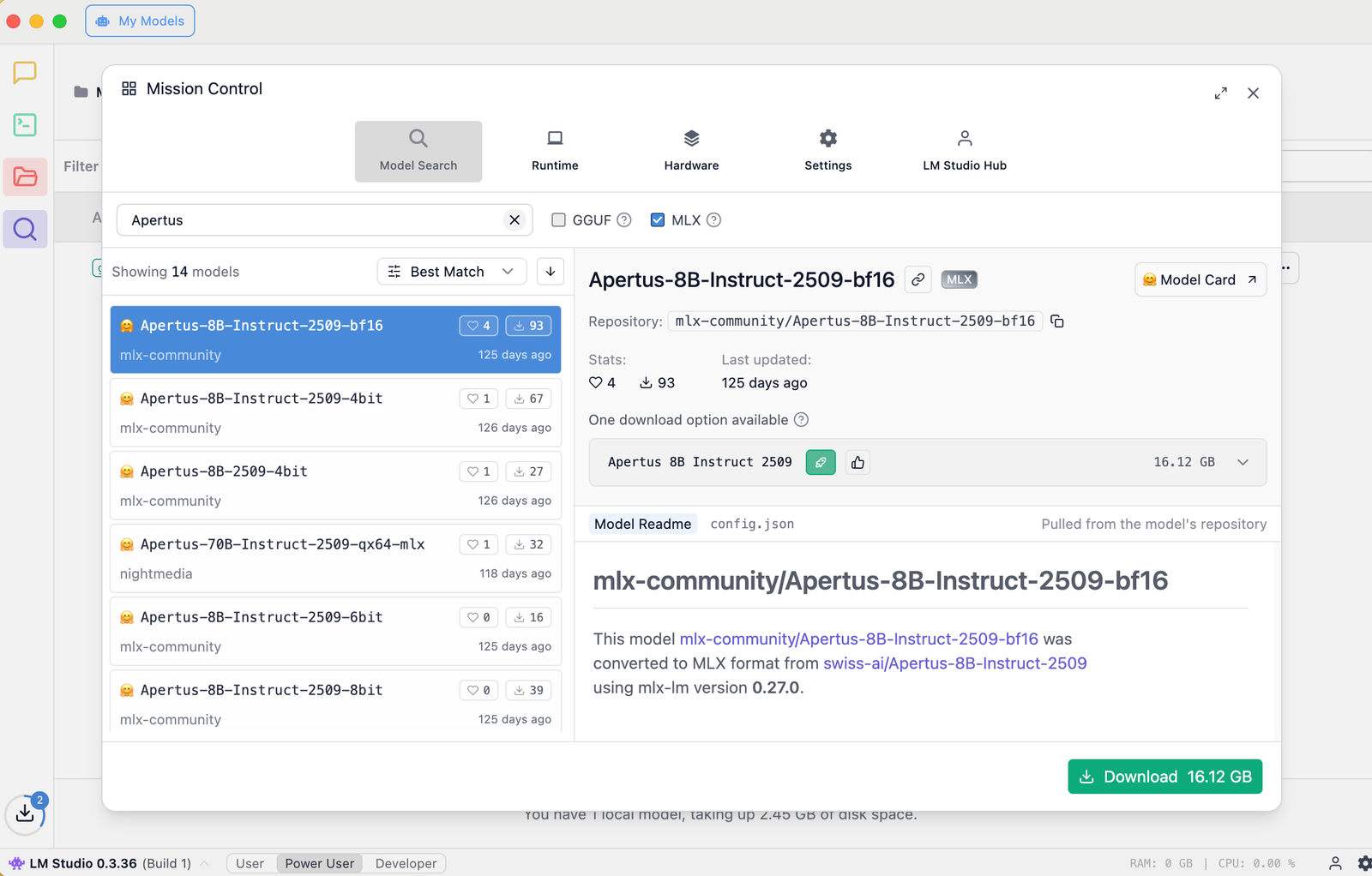 Click the gear on the bottom right to bring up Mission Control
For use on a Mac with Apple Silicon (MLX), pick the Apertus-8B-Instruct-2509-bf16 remix that is published by mlx-community.
Click Download, noting that it is unquantized, offered here in the same BF16 (Brain Floating Point) precision as the stock 8B model. You can also use another Apertus-8B-Instruct-2509-mlx version in the size that you prefer.
Loading the model
It took about 15 minutes to download the model on a fast connection.
If all goes well, after you select the model, LM Studio will begin to load it into the memory of your machine. This warm-up process may take one or two minutes.
When the Load model button in the screenshot below is clicked, you may however see a “Failed to load the model” dialog that cautions about insufficient system resources.
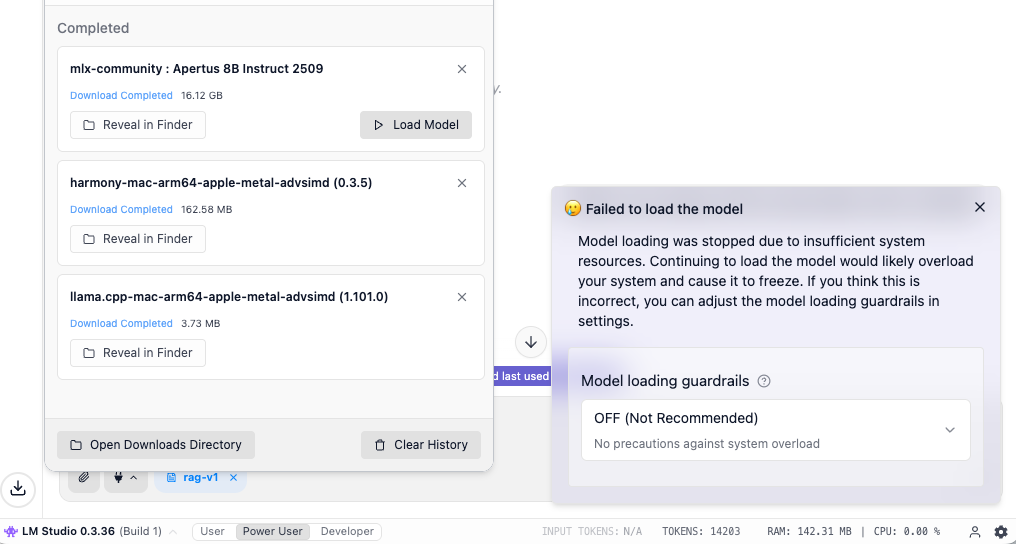
You can disable this guardrail (set to OFF), or try to download a smaller version of the model. The risk is that your computer may freeze if the memory is completely full. Watching memory consumption using the Activity Monitor or a similar tool is recommended.

Now you can start chatting, uploading files to set up a RAG - all in the privacy of your local GPU. It may not work as quickly or comprehensively as you are used to, but at all times you remain in control of your algorithm.
Troubleshooting
A few “gotchas”" to be aware of:
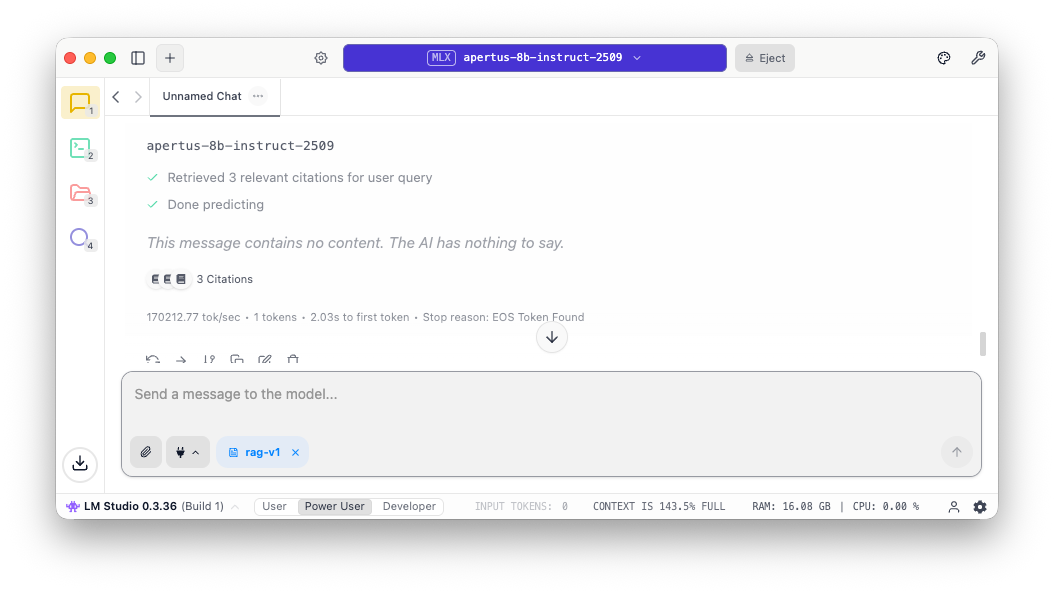
When one runs out of context window (uploading too many files into the RAG, having a very long prompt / system prompt, or using tools), the message appears “The AI has nothing to say”. Keep an eye on the status bar, where it is clear what is going on - that’s the 143.5% full message in the screenshot:
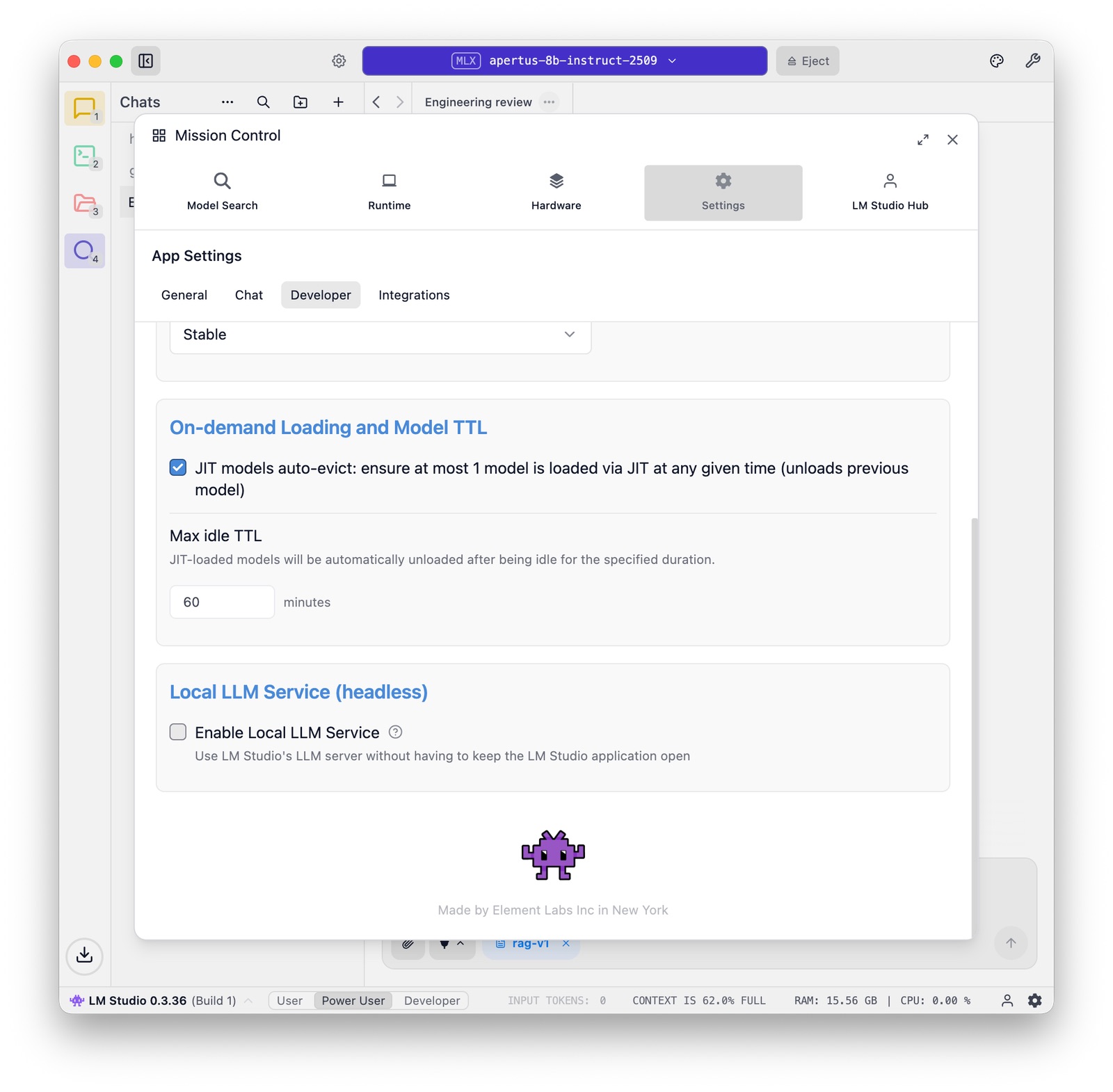
LM Studio carefully manages memory, in particular when multiple models come into play. There are some relevant options at the bottom of the Settings panel:
Benchmarking
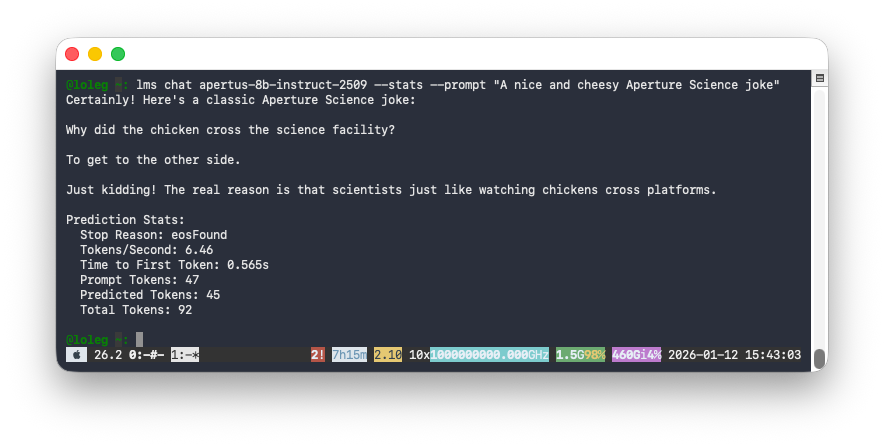
The Local LLM Service makes it possible to chat with Apertus from the LM Studio CLI, which gives us a handy way (--stats option) to test performance.
Here you can see that it takes about half a second to first token on a Macbook M4, providing a modest but reasonable 6.46 tokens per second (for comparison, humans on average read at 5 tokens per second):
You can also use other command line tools, like the llm utility or anything-llm that communicate with LM Studio using the API.
References
- Tips for users of Ollama, LM Studio, vLLM (alets.ch)